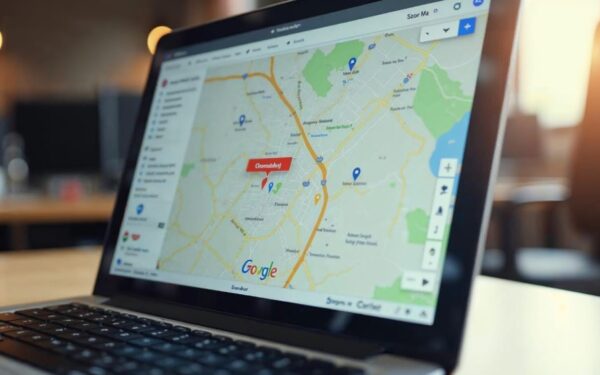



A few months ago, I was working with a roofing contractor in Orlando who was convinced his Google Business Profile was performing well. He was getting calls, his reviews were solid, and he ranked in the top 3 for his primary keyword — or so he thought. When we ran a geo-grid heatmap scan across his actual service area, the picture looked completely different. He dominated a tight cluster of ZIP codes near his physical address, but less than four miles away, he was invisible. Red pins everywhere. Competitors were cleaning up in neighborhoods where he had done dozens of jobs.
That’s the problem a local SEO heatmap solves. It’s not enough to know you rank — you need to know where you rank, down to the neighborhood level. And that’s exactly what geo-grid rank trackers are built to show you.
What Is a Local SEO Heatmap?
A local SEO heatmap — also called a geo-grid rank tracker or local visibility map — is a color-coded visual that shows your Google Maps and Local Pack rankings across your entire service area simultaneously. Instead of one ranking number for one location, you get a grid of data points, each representing how you rank from that specific spot on the map.
The color coding is straightforward: green means you’re in the top 3 positions, yellow means you’re ranking 4 through 10, and red means you’re at position 11 or beyond — essentially invisible to the average searcher. The moment you see your first heatmap, you understand your local SEO situation in a way that no spreadsheet or rank report could ever show you.
This matters because Google’s local algorithm is hyper-location-sensitive. Someone searching for a plumber from their home three miles north of your office gets a completely different set of results than someone searching from two blocks away from you. Distance, prominence, and relevance all shift based on the searcher’s coordinates — which is why your ranking at your business address tells you almost nothing about your visibility across your full service area.
How Geo-Grid Rank Trackers Actually Work
Here’s the technical piece, explained simply. A geo-grid tracker places a grid of virtual pins across your defined service area — think of it like overlaying a net on a map. Each pin represents a unique GPS coordinate. The tool then simulates a Google search from each of those coordinates and records where your business appears in the results.
Grid sizes typically range from a 5×5 grid (25 data points) for a tight urban area up to a 13×13 grid (169 data points) for a wide suburban or rural service area. The denser the grid, the more granular your visibility data. A 7×7 grid with 49 points is usually a solid starting point for most service businesses covering a 10-15 mile radius.
“Geo-grid rank checkers place a grid of pins across your area… You get a heatmap showing where you rank well and where potential customers can’t find you. That’s the data you need to make decisions.”
— Wiremo, 2026 Local SEO Tool Comparison
What makes this genuinely useful is that it runs all those simulated searches in one scan. You don’t have to manually check rankings from different locations or rely on a VPN trick. The tool handles it programmatically and hands you a visual that makes patterns obvious immediately.
The Tools Worth Using in 2026
I’ve tested most of the major players, and here’s my honest take on the ones that are actually worth your time and money.
Local Falcon is the one I recommend most often to clients. It’s purpose-built for geo-grid tracking, the interface is clean, and the competitor overlay feature shows you exactly which businesses are outranking you at each grid point. It’s not the cheapest, but the data quality is reliable.
BrightLocal’s Local Search Grid is a strong option if you’re already using BrightLocal for citation tracking or review monitoring. The integration makes it easy to connect your heatmap data to your broader local SEO workflow. Their competitor overlay is particularly useful for agencies presenting results to clients.
- Local Falcon — Best overall for dedicated geo-grid tracking; strong competitor overlay
- BrightLocal Local Search Grid — Best for agencies already in the BrightLocal ecosystem
- Semrush Map Rank Tracker — Best if you want local heatmap data integrated with your broader SEO toolset
- Nightwatch — Best for developers; supports up to 100 coordinates per scan and offers SERP API access
- Local Dominator — Good budget option with solid baseline scan features
Nightwatch deserves a specific callout for agencies doing programmatic reporting. Their 2026 update added SERP API functionality, which means you can pull location-based ranking data into custom dashboards without manual exports. If you’re managing 20+ clients, that kind of automation matters.
“Instead of giving you a giant table of numbers, it displays everything as a visual grid… patterns jump out immediately.”
— Nightwatch, Product Documentation 2026
How to Run Your First Scan (Step by Step)
The first scan you run should be treated as your baseline — a before photo. Don’t optimize anything before you have this data. Here’s exactly how I set up a first scan for a new client.
- Define your service area boundaries. Use ZIP codes or a radius from your business address. Be realistic — if you genuinely serve a 15-mile radius, set it to 15 miles. Don’t inflate it.
- Choose your grid density. Start with a 7×7 (49 points) for most service businesses. Go denser (9×9 or 13×13) if you’re in a competitive urban market.
- Select 3-5 core keywords. Focus on your highest-value terms: “plumber near me,” “emergency plumber [city],” “water heater repair [city].” Run separate scans for each keyword — rankings vary significantly by term.
- Run the scan and save the results. This is your baseline. Screenshot it, export it, store it somewhere you’ll actually find it in 60 days.
- Enable competitor overlays. Before you close the tool, click through the red pins and see exactly who is outranking you in those zones. Write those competitor names down.
The whole process takes about 20 minutes once you’re set up. If you’re managing local SEO for a client, this baseline scan is also one of the most compelling things you can show them at the start of an engagement — it makes the problem visible in a way that resonates immediately.
How to Read Your Results and Act on Them
When your heatmap comes back, resist the urge to panic about the red zones or celebrate the green ones. The goal is pattern recognition. Where are the red clusters? Are they concentrated on one side of your service area? Are they in specific neighborhoods? Is there a hard boundary where your rankings drop off?
In my experience, the most common pattern I see is what I call the “halo effect” — strong rankings close to the business address that fade out in every direction. This is almost always a signal that the Google Business Profile is under-optimized for geographic relevance beyond the immediate vicinity. The fix usually involves a combination of geo-targeted content, local citation building in the weak zones, and strategic review acquisition from customers in those specific neighborhoods.
For businesses with multiple service areas, this connects directly to a challenge I’ve written about before — check out my post on local SEO for multiple locations and how to rank each one without cannibalizing your own results. Heatmap data is invaluable for diagnosing overlap issues between locations.
Also worth noting: if your Google Business Profile has been suspended or flagged, your heatmap will show a wall of red across the entire grid — which is actually a useful diagnostic in itself. Sometimes clients come to me thinking they have a ranking problem when they actually have a profile problem.
The One Thing Most Businesses Miss: Micro-Gap Strategy
Here’s the angle I almost never see covered in competitor articles about local SEO heatmaps, and it’s the one that has generated the most tangible results for my clients: using your red zones not just to identify weakness, but to identify opportunity sequencing.
Most businesses look at a heatmap and think, “I need to fix all the red.” That’s the wrong frame. Not every red zone is worth the same effort. A red zone in a low-density suburb with few potential customers is not the same as a red zone in a high-income neighborhood where your average job value is three times higher.
What I do instead is overlay the heatmap data with demographic and revenue data. I want to know: which red zones have the highest concentration of my target customer? Those are the micro-gaps worth prioritizing. Everything else gets addressed in sequence, not simultaneously.
Here’s a real example. I worked with an HVAC company in Seminole County whose heatmap showed red zones in both a rural area to the north and a dense residential development to the east. The rural area had lower home values and longer service drives. The eastern development had newer homes, higher AC replacement rates, and was only six miles away. We focused our geo-targeted content and citation push on the eastern zone first. Within 90 days, it turned green. The rural zone could wait.
This is also where connecting your heatmap work to your broader content strategy pays off. If you’re building topical authority through content clusters, your geo-targeted service area pages should be mapped directly to the red zones you’re trying to convert — not just created generically for every city in your region.
And if you want to go even deeper on how Google Maps is evolving as a discovery platform, my post on Google Maps becoming a conversation tool for small businesses covers what’s changing and what you need to do about it.
“I always tell clients: your heatmap isn’t a report card. It’s a treasure map. The red zones aren’t failures — they’re the places your competitors haven’t locked up yet.”
— Jonathan Alonso, Head of Marketing, Yellow Jack Media
Frequently Asked Questions
How often should I run a local SEO heatmap scan?
For most businesses, monthly scans are sufficient to track meaningful progress. If you’re in an aggressive competitive market or actively running a local SEO campaign, bi-weekly scans give you faster feedback on whether your optimizations are working. Always run a scan before and after any major Google Business Profile change so you can isolate the impact.
Do local SEO heatmaps track Google Maps and organic results separately?
The best tools track both simultaneously. Local Falcon and BrightLocal’s Local Search Grid show Local Pack (Maps) rankings by default, and some tools like Semrush’s Map Rank Tracker also incorporate organic local results in the same scan. For most service businesses, the Local Pack is the priority — that’s where the clicks and calls come from.
Can a heatmap scan hurt my Google Business Profile?
No. Geo-grid tools simulate searches from external coordinates — they don’t interact with your Google Business Profile directly or trigger any flags. The scans are read-only data pulls. Google has no mechanism to penalize you for someone (or a tool) searching for your business from different locations.
What’s the difference between a 5×5 and a 13×13 grid scan?
Grid size determines resolution. A 5×5 scan gives you 25 data points spread across your service area — useful for a quick overview but misses detail in dense markets. A 13×13 gives you 169 data points, which reveals micro-level gaps and is worth the extra cost if you’re in a competitive urban market or managing a large service territory.
Resources
- Local Falcon — Geo-grid rank tracking tool for local SEO heatmaps
- BrightLocal Local Search Grid — Official documentation and setup guide
- Semrush Map Rank Tracker — How to use Semrush’s local heatmap feature
- Google Maps Places API — Official documentation for location-based search data
- Nightwatch — Geo-grid rank tracking with SERP API for developers